11.2. XY Charts Pro
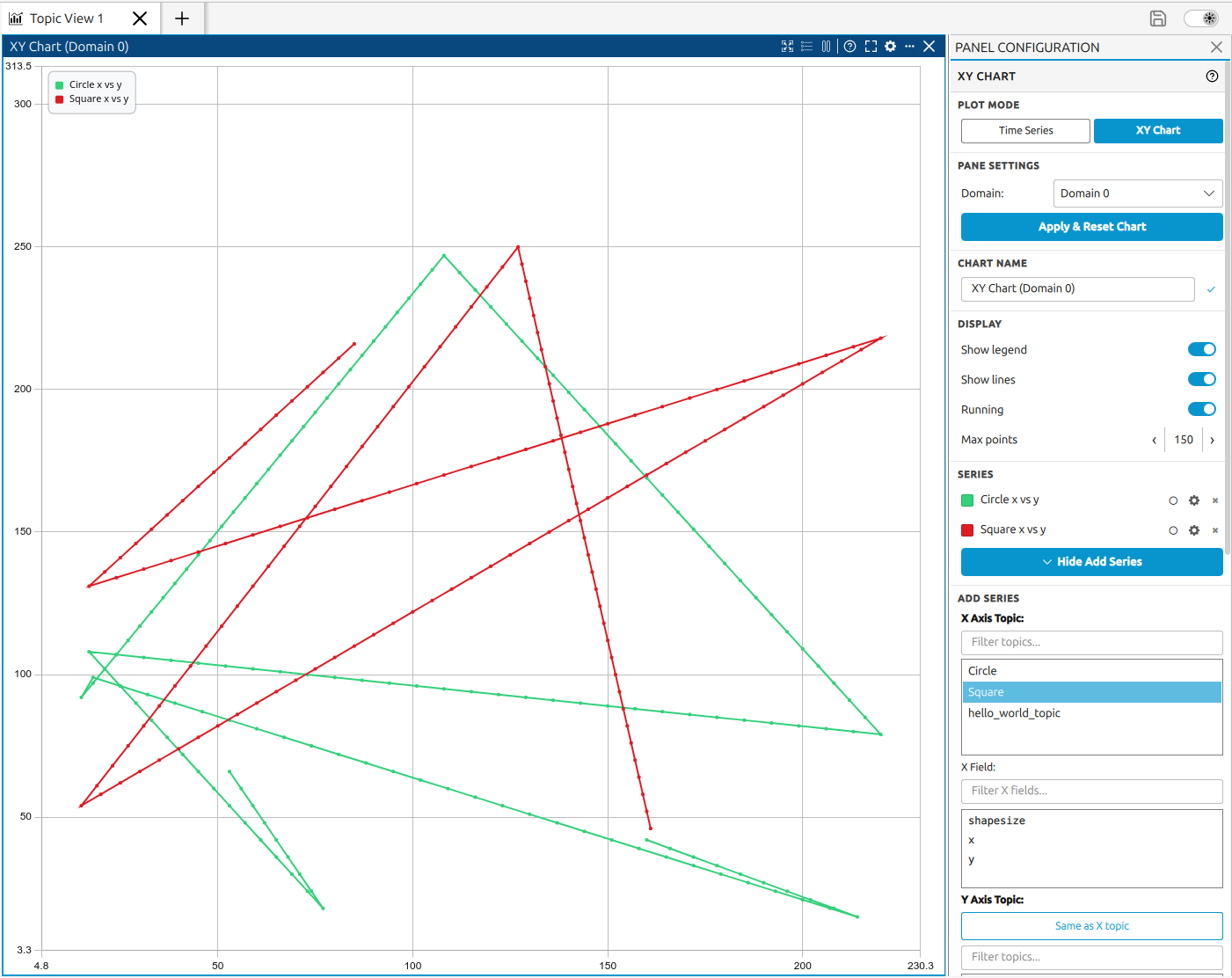
An XY Chart (also called a phase plot or scatter chart) plots the relationship between two numeric fields extracted from live DDS topic samples. Unlike a Time Series Topic Chart, whose X axis is always a time axis, an XY Chart has both axes as value axes: the X axis is driven by one numeric field and the Y axis by another. New data points appear in real time as samples arrive from the monitored DDS network.
Multiple series can be plotted in the same XY Charts pane. Each series independently sources its X and Y values, and the two values may come from the same topic or from different topics within the same DDS domain. Fields that are integers, floats, or doubles can be plotted. Struct and array fields are not plotted directly but can be expanded to reach their numeric leaf fields.
11.2.1. Opening XY Charts
There are several ways to open a new XY Charts pane:
Use Add → Add Topic Live Chart in the application menu bar.
Click the Topic Charts View button in an empty pane; when the chart opens, select XY Chart in the PLOT MODE row of the configuration panel.
Click the three-dots button in the header of any existing pane to open the split menu, then choose Split right or Split down and select Topic Chart to open a new chart alongside the current pane, or choose Replace panel to replace the current pane with an XY Chart.
11.2.2. Managing Series
Adding a series:
Click + Add XY Series in the Series section to expand the series creation form. For each new series, select:
An X Axis Topic and an X Field - the topic and numeric field whose values drive the X axis.
A Y Axis Topic and a Y Field - the topic and numeric field whose values drive the Y axis.
Fields only appear after the first DDS sample has arrived on the selected topic. Click Add to confirm. The picker stays open so that additional series can be added without reopening it. Click the toggle button again to collapse it.
Note
A data point is produced whenever a sample arrives that contains both a valid X value and a valid Y value. When X and Y come from different topics, the monitor pairs each new X sample with the most recent Y sample (and vice versa), so plotted points always reflect the latest paired values at the time of arrival.
Note
Fields only appear in the picker after the first sample has arrived on the selected topic. If the field list is empty, wait for traffic on that topic or verify that the topic is being published.
Editing a series:
Right-clicking a series entry in the legend opens a context menu with the following options:
Rename series opens a dialog to give the series a custom display name shown in the legend.
Change color opens a color picker to assign a custom scatter marker color.
Hide series / Display series toggles the series visibility on the chart without removing it.
Set max data points sets how many recent data points this series retains in the rolling buffer.
Remove series removes the series from the chart permanently.
The same options are available from the Series section of the Right-Side Pane Configuration sidebar, where each series has a row with a color swatch, rename, visibility toggle, and remove button.
Bulk actions:
The Actions section of the Right-Side Pane Configuration sidebar provides:
Show All Series makes every hidden series visible at once.
Hide All Series hides all series without removing them.
Clear Chart removes all series and resets the chart.
11.2.3. Chart Header Controls
The chart header provides the following buttons from left to right:
 Add Series opens the inline add-series panel in the Right-Side Pane Configuration sidebar.
 Reset View returns both axes to their auto-fit range calculated from the current data.
 Toggle Legend shows or hides the legend listing all active series and their colors.
 /
/  Lock / Resume chart scroll locks both the X and Y axes together so the chart stops
auto-scrolling, leaving the view fixed while data keeps flowing in. The button shows while at
least one axis is still auto-scrolling and switches to once both are locked; clicking it again
unlocks both axes and resumes auto-scroll. Data reception is unaffected; to pause ingestion use the
Running toggle in the sidebar.
Lock / Resume chart scroll locks both the X and Y axes together so the chart stops
auto-scrolling, leaving the view fixed while data keeps flowing in. The button shows while at
least one axis is still auto-scrolling and switches to once both are locked; clicking it again
unlocks both axes and resumes auto-scroll. Data reception is unaffected; to pause ingestion use the
Running toggle in the sidebar. Help opens a contextual help panel showing a brief description of XY Charts, usage tips,
and a link to this documentation page.
Help opens a contextual help panel showing a brief description of XY Charts, usage tips,
and a link to this documentation page. /
/  - maximizes/ minimizes the pane; click again to restore the previous layout.
 Panel Settings opens the Right-Side Pane Configuration sidebar for this chart.
The three-dots button opens the split menu to open a new pane to the right or below the current one.
 Close closes the pane.
11.2.4. Interactive Chart Controls
The following mouse and keyboard interactions are available directly on the chart area:
Click on a data point to show its exact (X, Y) value.
Scroll wheel to zoom the X axis in and out.
Ctrl + scroll wheel to zoom the Y axis in and out.
Shift + drag to zoom into a selected area.
Ctrl + click and drag to scroll (pan) the axes without zooming.
11.2.5. Right-Side Configuration Panel
Opening the Right-Side Pane Configuration sidebar for an XY Chart (via the button) shows the
following sections:
Pane Settings - domain selection, time window, max points, applied with Apply & Reset Chart.
Chart Name - rename the chart title shown in the pane header.
Display - toggles for legend, connecting lines, and running (pause/resume ingestion).
Series - list of active series with per-series controls; Add XY Series button to expand the inline series creation form (X Axis Topic, X Field, Y Axis Topic, Y Field).
Axes - lock Y axis or X axis to a fixed range; Reset Zoom.
Panel Actions - split and replace submenus, save and copy screenshot.
Actions - show/hide all series, clear chart.
See Right-Side Pane Configuration for the full configuration panel reference.