13. Topic Type View (IDL)
A Topic Type View displays the Interface Definition Language (IDL) type description for a selected DDS topic in a scrollable, selectable monospace text view. When a topic is not yet discovered, the pane waits and loads the IDL automatically once the topic becomes available.
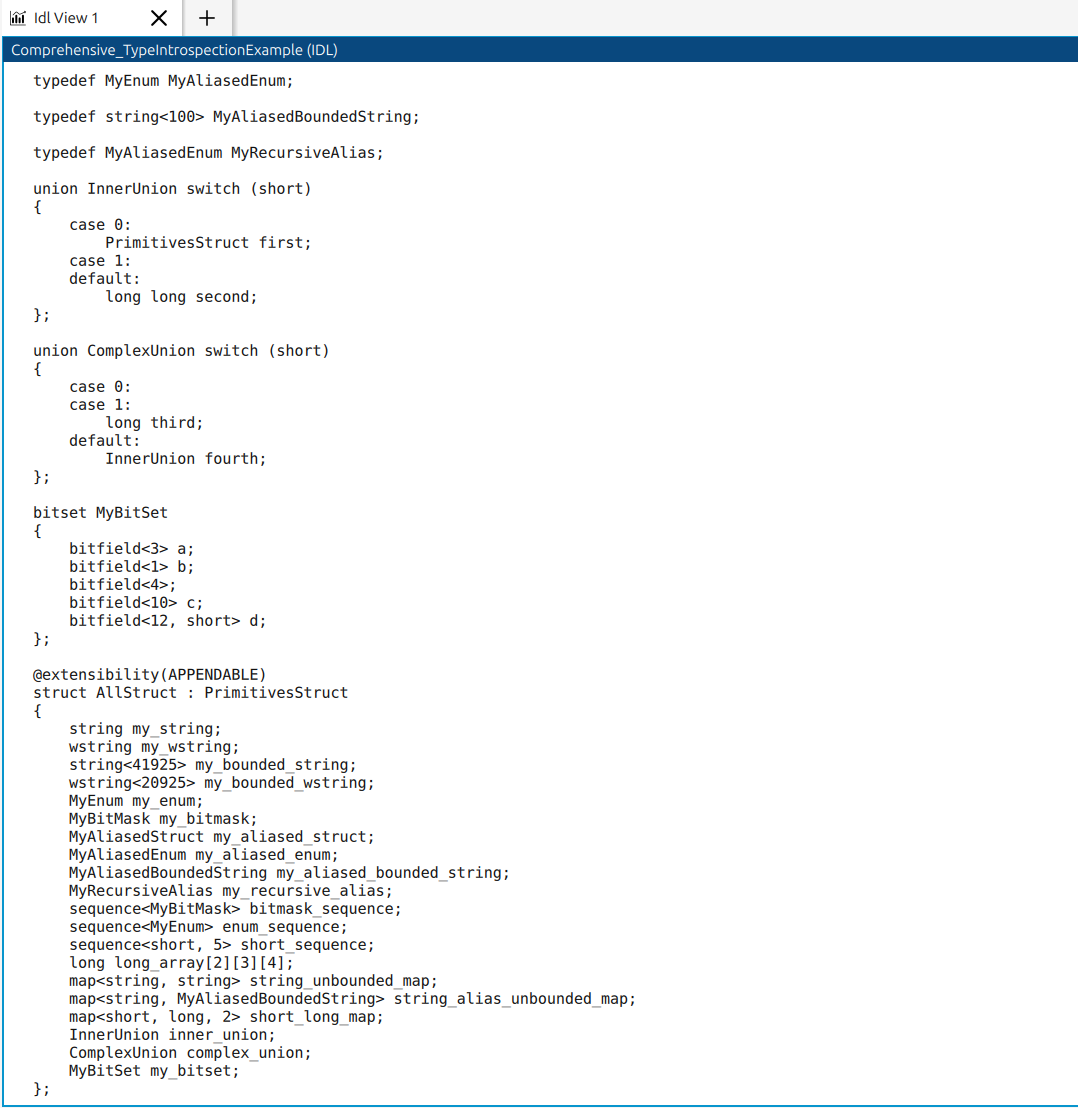
13.1. Opening a Topic Type View
There are several ways to open a new Topic Type View:
Right-click a topic in the Topics Panel , the Logical Panel, or the domain graph and choose Data type IDL view.
Use Add → Add Topic Type View (IDL) in the application menu bar.
Click the three-dots button in the header of any existing pane, choose Split right or Split down, and select Topic Type View (IDL) to open a new IDL pane alongside the current one, or choose Replace panel to replace the current pane with an IDL view.
13.2. Pane Header Controls
The header shows the type name of the topic followed by “(IDL)”.
 - copies the full IDL text to the clipboard in one click.
 - opens a contextual help panel with usage tips and a link to this documentation page.
 /
/  - maximizes/ minimizes the pane; click again to restore the previous
layout.
- maximizes/ minimizes the pane; click again to restore the previous
layout. - opens the Right-Side Pane Configuration sidebar for this pane.
The three-dots button opens the split menu to open a new pane to the right or below.
 - closes the pane.
13.3. Text Area Interactions
Select text with the mouse or keyboard.
Right-clicking opens a context menu with Copy (copies the selection, or the full IDL if nothing is selected) and Select All.
13.4. ROS 2 Demangling
ROS 2 wraps its type names in a mangled format when publishing over DDS (for example,
rosidl_typesupport_fastrtps_cpp::std_msgs::msg::dds_::String_ instead of
std_msgs/msg/String).
Fast DDS Monitor can reverse this mangling to show the original ROS 2 type name and a clean IDL
representation that is directly usable with Fast DDS Gen.
When demangling is active, a badge reading ROS 2 Demangling applied appears in the upper-right corner of the IDL pane to indicate that the displayed IDL is not the raw on-the-wire representation.
Demangling is enabled by default and applies to all IDL panes simultaneously. It can be toggled in two ways:
View → Revert ROS 2 Demangling to show the raw representation.
View → Perform ROS 2 Demangling to restore the clean representation.
The same setting is also available as a toggle in the DISPLAY section of the right-side configuration panel for any open IDL pane.
13.5. Right-Side Configuration Panel Pro
When the Right-Side Pane Configuration sidebar is open for a Topic Type View it shows five sections:
Topic - displays the current topic name, domain number, and resolved type name as read-only labels.
Change Topic - select a different domain and topic, then apply with Apply & Reload, which fetches and displays the IDL for the new topic immediately.
Display - toggle to enable or disable ROS 2 Demangling for the current pane. This setting applies to all IDL panes at once.
Panel Actions - Split right and Split down submenus, each letting you open a new pane alongside the current one.
Actions - Select All to select the full IDL text in one click.