10. Spy Topic View
A Spy Topic View subscribes to a DDS topic and shows the live data samples published on it in real time, displaying each incoming sample as an expandable field tree. Useful for verifying that the expected data is being published and inspecting individual field values as they arrive.
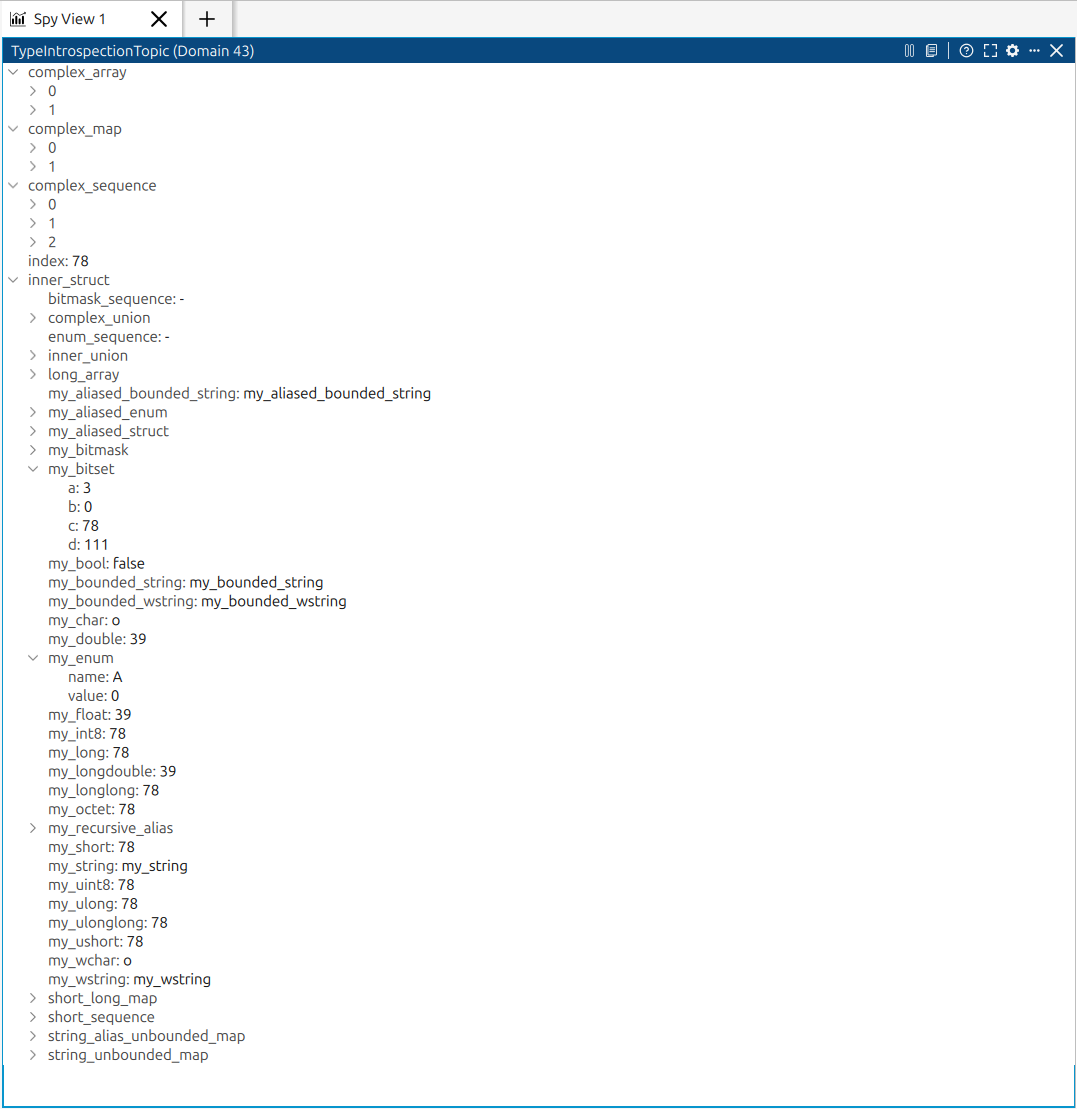
10.1. Opening a Spy Topic View
There are several ways to open a new Spy Topic View:
Right-click a topic in the Topics Panel , the Logical Panel, or the domain graph and choose Spy topic data.
Use Add → Add Spy Topic View in the application menu bar.
Click the Spy Topic View button shown in an empty pane placeholder or in the workspace when no panes are open yet.
Click the three-dots button in the header of any existing pane, choose Split right or Split down, and select Spy Topic View to open a new Spy pane alongside the current one, or choose Replace panel to replace the current pane with a Spy Topic View.
10.2. Pane Header Controls
The header shows the name of the topic being spied.
 /
/  - starts and stops the live subscription without closing the pane.
 - copies the last received sample as JSON to the clipboard in one click.
 - opens a contextual help panel with usage tips and a link to this documentation page.
 /
/  - maximizes/ minimizes the pane; click again to restore the previous
layout.
- maximizes/ minimizes the pane; click again to restore the previous
layout. - opens the Right-Side Pane Configuration sidebar for this pane.
The three-dots button opens the split menu to open a new pane to the right or below.
 - stops the subscription and removes the pane.
10.3. Right-Side Configuration Panel Pro
When the Right-Side Pane Configuration sidebar is open for a Spy Topic View it shows four sections:
Pane Settings - select a different domain and topic, then apply with Apply & Restart, which restarts the subscription on the new topic immediately.
Playback - toggle to start or stop the live subscription without leaving the sidebar.
Actions - Expand All and Collapse All to unfold or fold the entire sample tree at once, Clear to discard all received samples, and Copy JSON to Clipboard to copy the last sample.
Panel Actions - Split right and Split down submenus, each letting you open a new pane alongside the current one.
You can have several Spy Topic Views open at once, each subscribing to a different or the same topic.
10.4. Field Interactions
Individual fields within an expanded sample tree are interactive beyond just reading their values.
Right-click a numeric leaf field to open a context menu with a Plot field action. Selecting it opens a new Time Series Chart for that field immediately, without having to navigate the Add menu.
Drag a numeric leaf field from the sample tree and drop it onto an existing Time Series Chart to add that field as a new series on the chart.
Both interactions work with any field whose IDL type is an integer, float, or double. Struct and array fields can be expanded to reach their numeric children but cannot be dragged or plotted directly.