9. Image Pane Pro
The Image Pane is a dockable panel that renders live image or video frames published on a DDS topic. When you subscribe to a compatible topic, the pane detects the image schema automatically, decodes each incoming sample, and displays the resulting frame inside the monitor workspace. The decoded image scales to fit the pane while preserving the original aspect ratio.
9.1. Supported Image Schemas
The pane detects the topic type automatically and supports two families of schemas:
ROS 2 sensor_msgs types
sensor_msgs/msg/Imagecarrying a raw pixel buffer.sensor_msgs/msg/CompressedImagecarrying compressed image frames.sensor_msgs/msg/CompressedVideocarrying compressed video frames.
Both the standard ROS 2 type names and their DDS-mangled variants (e.g.
sensor_msgs::msg::dds_::Image_) are recognized.
Generic OMG IDL image types
RawImagefor raw pixel buffers.CompressedImagefor compressed image frames.CompressedVideofor compressed video frames.
These bare type names are matched regardless of which IDL module wraps them, so they work with any toolchain that publishes image data using those standard OMG IDL type definitions.
Only topics with a recognized image schema appear in the topic selection lists. Topics that do not match any supported schema are excluded automatically.
9.2. Supported Encodings
Within each schema family the pane decodes the following payloads:
Raw pixel buffers (sensor_msgs/msg/Image and RawImage)
The encoding field of the sample must be one of:
rgb88-bit RGB.bgr88-bit BGR (channels swapped on decode).rgba88-bit RGBA.bgra88-bit BGRA (channels swapped on decode).mono88-bit grayscale.8uc1single-channel 8-bit (treated as grayscale).
Encoding matching is case-insensitive. Any other value (for example yuv422, bayer_*, 16UC1,
32FC1) is rejected with an “Unsupported raw encoding” error. The maximum supported image dimension
is 16384 × 16384 pixels.
Compressed images and compressed video
(sensor_msgs/msg/CompressedImage, CompressedImage,
sensor_msgs/msg/CompressedVideo, CompressedVideo)
Both compressed schemas are decoded the same way: every sample must be a self-contained frame whose payload is one of:
JPEG.
PNG.
The decoder reads the format field as a hint and otherwise auto-detects from the payload header.
Streaming video codecs such as H.264 and H.265 are not supported yet: a sample carrying such a
payload arrives but cannot be decoded, and the pane displays an “Unsupported video format” error.
9.3. Opening an Image Pane
There are several ways to open a new Image Pane:
Right-click a topic in the Topics Panel , the Logical Panel, or the domain graph and choose Open image view. This option is only visible and enabled for topics with a recognized image schema.
Use Add → Add Image View in the application menu bar.
Click the Image View button in an empty pane.
Click the three-dots button in the header of any existing pane to open the split menu, then choose Split right or Split down and select Image View to open a new Image Pane alongside the current one, or choose Replace panel to replace the current pane with an Image Pane.
9.4. Display and Status
The content area of the pane shows one of the following states at any given time:
Live frame shows the most recently decoded image, scaled to fit the pane while preserving the original aspect ratio.
Waiting for frames appears when the pane is active and subscribed but no frame has arrived yet.
Stream paused appears when the subscription has been stopped manually.
Decode error shows a dark overlay with a red warning and the error message when a frame arrives but cannot be decoded.
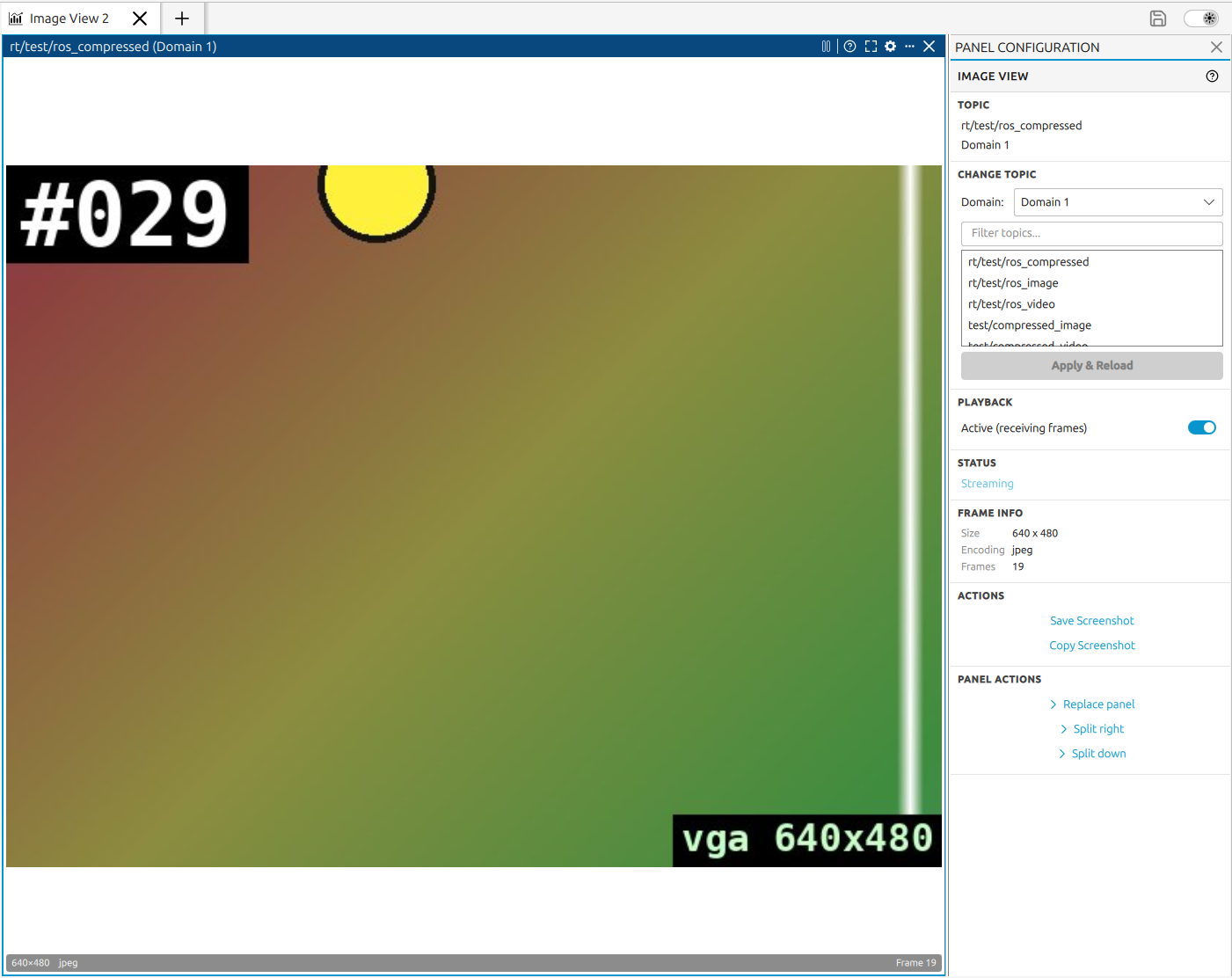
A metadata strip at the bottom of the content area becomes visible once at least one frame has been received. It shows the frame resolution (width × height), the encoding string, and a running count of total frames received.
The encoding string reflects what the decoder reported for the current frame:
For raw frames it is the value of the sample’s
encodingfield (for examplergb8).For compressed image and compressed video frames it is the value of the sample’s
formatfield (typicallyjpegorpng). When the publisher leavesformatempty, the strip falls back tocompressedfor compressed images andvideo-framefor compressed video.
9.5. Pane Header Controls
The header shows the topic name and domain number of the active subscription.
 /
/  - starts and stops the live frame stream without closing the pane.
 - opens a contextual help panel with usage tips and a link to this documentation page.
 /
/  - maximizes/ minimizes the pane; click again to restore the previous
layout.
- maximizes/ minimizes the pane; click again to restore the previous
layout. - opens the Right-Side Pane Configuration sidebar for this pane.
The three-dots button opens the split menu to open a new pane to the right or below.
 - stops the subscription and removes the pane.
9.6. Right-Side Configuration Panel
Opening the Right-Side Pane Configuration sidebar for an Image Pane (via the button) shows the
following sections:
Topic - read-only labels showing the current topic name and domain.
Change Topic - domain and topic selection; click Apply & Reload to switch to the new topic and restart the subscription.
Playback - toggle Active (receiving frames) to start or stop the frame stream (equivalent to the
/ header button).Status - current state: Streaming, Waiting for frames, Paused, or Error.
Last Error - visible only when a decode error occurred; shows the decoder error message.
Frame Info - visible once frames arrive; shows resolution, encoding, and frame count.
Actions - Save Screenshot saves the current frame as a PNG; Copy Screenshot copies it to the clipboard.
Panel Actions - split and replace submenus.
See Right-Side Pane Configuration for the full configuration panel reference.