12. Publisher Pane Pro
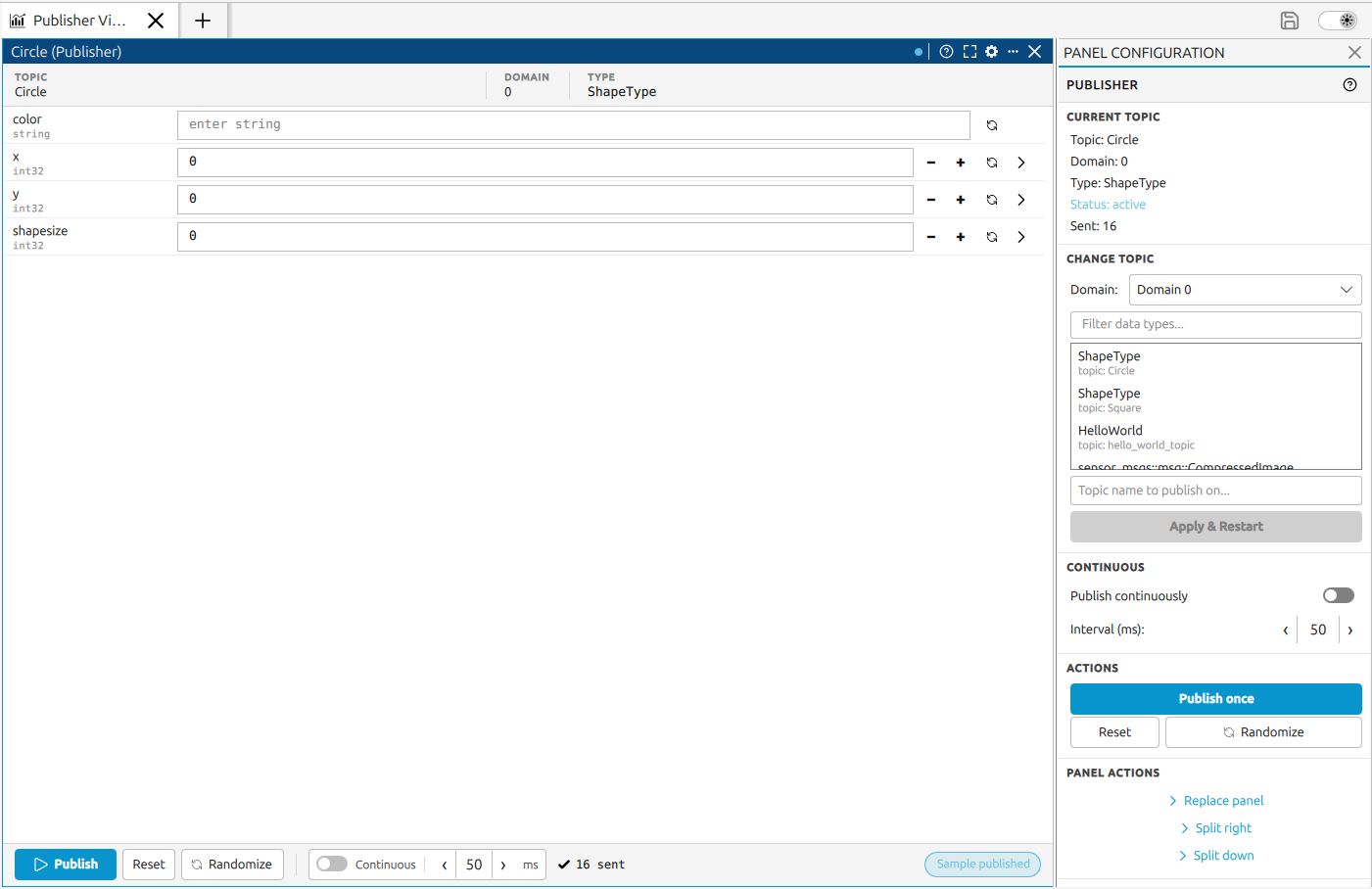
The Publisher Pane is a dockable panel that publishes user-defined samples on any discovered DDS topic. When you attach it to a topic, the pane reads the topic’s dynamic type and builds an editable form whose shape matches the IDL definition. You fill in the values, then publish a single sample or republish the current values continuously at a configurable interval.
The pane uses the type information that a subscriber publishes on the network, so as long as a remote participant has propagated the topic type, no local IDL file is needed to drive the form.
12.1. Opening a Publisher Pane
There are several ways to open a new Publisher Pane:
Right-click a topic in the Topics Panel , the Logical Panel, or the domain graph and choose Publish topic data. Built-in and statistics Fast DDS topics cannot be published and this option is disabled for them.
Use Add → Add Publisher View in the application menu bar.
Click the Publisher View button shown in an empty pane placeholder or in the main panel selector when no panes are open yet.
Click the three-dots button in the header of any existing pane to open the split menu, then choose Split right or Split down and select Publisher View to open a new Publisher Pane alongside the current one, or choose Replace panel to replace the current pane with a Publisher Pane.
12.2. The Dynamic Form
Once the pane is attached to a topic and the type has been resolved, the body of the pane is filled with one row per top-level field of the topic type. Every field is editable inline. Nested aggregates can be expanded and collapsed independently, so even very large types stay manageable.
12.2.1. Primitive Fields
The following IDL primitive types are rendered as scalar inputs:
Signed and unsigned integers of every width (
byte,int8,int16,int32,int64,uint8,uint16,uint32,uint64).Floating-point numbers (
float32,float64,float128).Characters and wide characters (
char8,char16).Booleans (
bool), shown as a labelled toggle switch.Strings and wide strings (
string,wstring).
Each numeric input has a small stepper for increment and decrement, a randomize action that picks a value of the correct type, and an optional expandable slider with editable minimum and maximum bounds. Values typed into the field are coerced to the declared type before publishing. Inputs that exceed the declared type’s representable range are rejected with an out-of-range parsing error, and non-numeric input fails.
12.2.2. Enums, Bitmasks and Bitsets
Enum fields are shown as a dropdown listing every declared value. A randomize action picks a value at random from the declared set.
Bitmask fields are shown as a row of toggle chips, one per declared flag. Click a chip to add or remove that flag from the mask. The publish payload contains exactly the flags that are toggled on.
Bitset fields are shown as a labelled list of numeric inputs, one per declared bit field. Each sub-field is edited and randomized independently.
12.2.3. Unions
Union fields show a discriminator selector at the top followed by the form for the currently selected branch. Changing the discriminator immediately swaps the visible branch. Only the active branch is sent when the sample is published, matching the standard DDS union semantics.
12.2.4. Nested Structs
Struct members appear as expandable rows. The header shows the member name and type, and clicking it toggles the nested form on and off. Nested structs start collapsed by default so that very deep types do not slow the pane down on first load. Expanded sections are marked with a left border for visual nesting.
12.2.5. Sequences and Arrays
Sequences and arrays are shown as an expandable row with a count badge and a label that names the kind (sequence or array) and the current number of elements. The row contains:
A chevron that expands or collapses the list of element rows.
A randomize button that fills every element with a random value of the element type.
A
[+]button (sequences only) that appends a new element initialized to the type default.A
[-]button on each element row that removes that element.
Fixed-length arrays always keep their declared shape; the [+] and [-] controls are hidden for them.
Multi-dimensional arrays are rendered as nested rows that can be expanded one level at a time.
12.2.6. Maps
Map fields are shown as a list of key/value entry rows under an expandable header. The header has the
same controls as sequences: a chevron to fold and unfold the entries, a randomize button, and a [+]
button to append a new entry. Each entry shows the key and value inline and has a [-] button to
remove it.
12.3. Publishing Samples
The pane offers two modes of publishing: a one-shot publish and a continuous publish.
Publish once
The Publish button in the pane sends the current values of the form as a single sample. The button is also available as Publish once in the right-side configuration panel. Each publish updates a small status indicator inside the pane and increments a counter of samples sent on the current topic.
Continuous publish
When the Publish continuously toggle is on, the pane republishes the current values at a fixed interval, sending one sample per tick. The interval is set with a spin box next to the toggle and is expressed in milliseconds; the minimum allowed value is 50 ms. The interval can be changed while continuous publishing is running, and the next tick honours the new value.
If a publish fails while continuous mode is on (for example because the topic has been undiscovered), continuous mode disables itself automatically and the failure is shown in the status indicator. Re-enable it manually after fixing the underlying issue.
12.4. Per-Field and Bulk Actions
Per-field actions live next to the input itself:
Randomize picks a random value of the field’s type. On scalars, enums and bitmasks it acts on the field directly. On sequences, arrays and maps it randomizes every element or entry at once.
Reset is available as a bulk action at the pane level and restores every field in the form to its schema default, resets the volatile sample counter and the last-publish status indicator and collapses the state of nested containers.
Pane-level bulk actions are available from the right-side configuration panel:
Reset restores every field to its schema default, resets the volatile sample counter and the last-publish status indicator and collapses the state of nested containers.
Randomize fills every leaf field in the form with a random value of the correct type, including the contents of nested sequences and maps.
12.5. Pane Header Controls
The header shows the topic name and domain number of the active publisher.
 - opens a contextual help panel with a description of the Publisher Pane, usage tips,
and a link to this documentation page.
- opens a contextual help panel with a description of the Publisher Pane, usage tips,
and a link to this documentation page. /
/  - maximizes/ minimizes the pane; click again to restore the previous
layout.
- maximizes/ minimizes the pane; click again to restore the previous
layout. - opens the Right-Side Pane Configuration sidebar for this pane.
The three-dots button opens the split menu to open a new pane to the right or below the current one.
 - stops the publisher and removes the pane.
12.6. Right-Side Configuration Panel
Opening the Right-Side Pane Configuration sidebar for a Publisher Pane shows the following sections:
Current Topic
Read-only summary of the active publisher: topic name, domain number, resolved type name, publisher status (active or waiting), and a counter of samples sent on the current topic.
Change Topic
Domain selects a different monitored domain. Changing the domain refreshes the topic list.
Topic lists the publishable topics discovered on the selected domain.
Apply & Restart stops the current publisher, switches to the new topic, and rebuilds the form from the new type. Form values entered for the previous topic are discarded, while the continuous-mode toggle and interval are preserved.
Continuous
A Publish continuously toggle starts or stops the periodic publishing loop. This is the same toggle exposed inside the pane.
An Interval spin box sets how often a sample is sent while continuous mode is active. The value is expressed in milliseconds and has a minimum of 50 ms.
Actions
Publish once sends a single sample with the current form values without enabling continuous mode.
Reset restores every field to its schema default.
Randomize fills every leaf field in the form with a random value of the correct type.
Panel Actions
Split right and Split down each expand a submenu to open any other pane type alongside the current pane.
12.7. Workspace Save and Restore
The Publisher Pane participates in Workspace Save and Restore . The following information is persisted for each Publisher Pane and restored on load:
The subscribed topic name and domain number. The pane re-resolves the topic from this stable pair rather than from a volatile entity identifier, so a workspace can be reopened across runs of the monitored application without losing the binding.
The complete map of form values entered by the user, keyed by field path. The current edits are snapshotted at save time, so values typed into the form survive even if no sample has been published yet. Per-element counts of variable-length sequences and maps, and the active branch of every union, are also restored so the form opens in the same shape as it was last saved.
The per-field slider minimum and maximum bounds for every numeric scalar field, so a range that was tightened or widened by the user is reapplied on load.
The continuous-mode toggle state and the configured interval in milliseconds.
The volatile sample counter, the last-publish status indicator, and the local expand/collapse state of nested containers are not persisted; they reset to their defaults on load.
If the saved topic is not yet discovered at the moment the workspace is loaded, the pane opens in a waiting state and the form is populated as soon as the topic and its type become available.